Two Notion Calendars on one Mac
Keep a work and a personal Notion Calendar apart on the same Mac: both open at once, each with its own sign-in, calendars and notifications. Parallex is free and open source.
How
- Install Parallex (below). Your Notion Calendar isn't changed.
- Choose New Instance and pick Notion Calendar. Name it for what it's for, like “Notion Calendar Work”, and give it a color.
- Open it and sign in with the other account. Both run at once, each in its own windows, each with its own Dock icon.
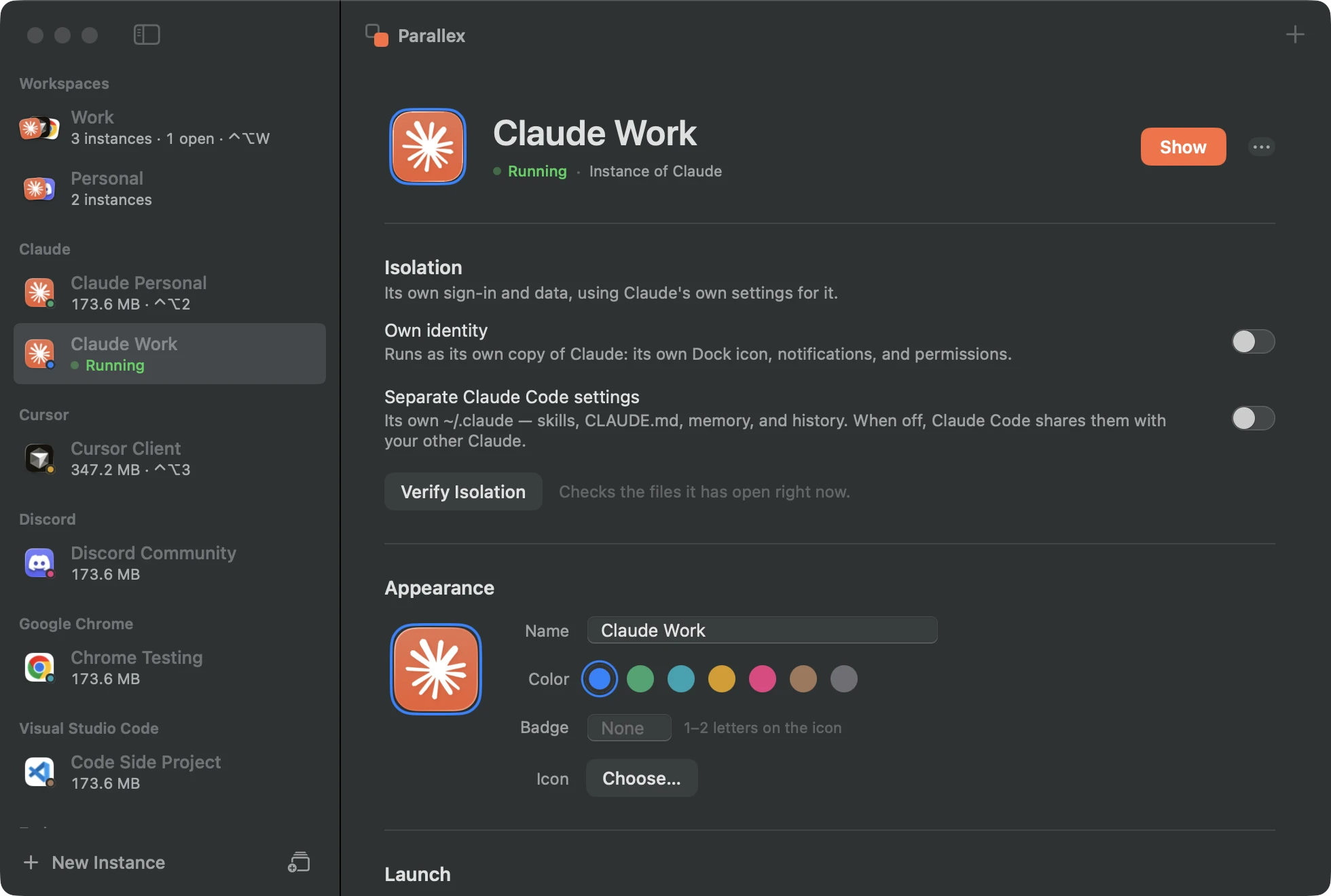
What you get with Notion Calendar
- Its own copy of Notion Calendar, with its own Dock icon, name and color, its own notifications, and its own macOS permissions.
- Its own Library and keychain, so its sign-in, settings and caches are separate from your other Notion Calendar, and it has its own encryption key in the keychain.
- Guard keeps the copy out of the original's data, and the isolation check shows what the copy has opened of yours.
- Kept up to date by Parallex: Notion Calendar's own updater is turned off in the copy, and Parallex refreshes the copy when your Notion Calendar updates.
Good to know
- A copy can't use iCloud sync, push notifications or Sign in with Apple, which belong to the original's signature. Apps that don't use them aren't affected.
Questions
Notion Calendar shows several Google accounts. Why two?
When you want them apart: one calendar app for work with its own notifications and Dock icon, and another for everything else.
Get Parallex
Free and open source, for macOS 14 and later. In Terminal:
curl -fsSL https://parallex.mandip.dev/install | shOr download it from GitHub, or with Homebrew: brew tap mandipadk/parallex https://github.com/mandipadk/parallex then brew install --cask parallex. Then choose New Instance, pick Notion Calendar, and give it a name.
Already have Parallex?
This opens New Instance with Notion Calendar picked; you name it and choose its color.
Make a second Notion Calendar