Two VS Code instances with separate accounts and extensions
Keep a client's setup in a second VS Code on the same Mac: both open at once, each signed in to its own account, with its own notifications and Dock icon. Parallex is free and open source.
How
- Install Parallex (below). Your Visual Studio Code isn't changed.
- Choose New Instance and pick Visual Studio Code. Name it for what it's for, like “Visual Studio Code Work”, and give it a color.
- Open it and sign in with the other account. Both run at once, each in its own windows, each with its own Dock icon.
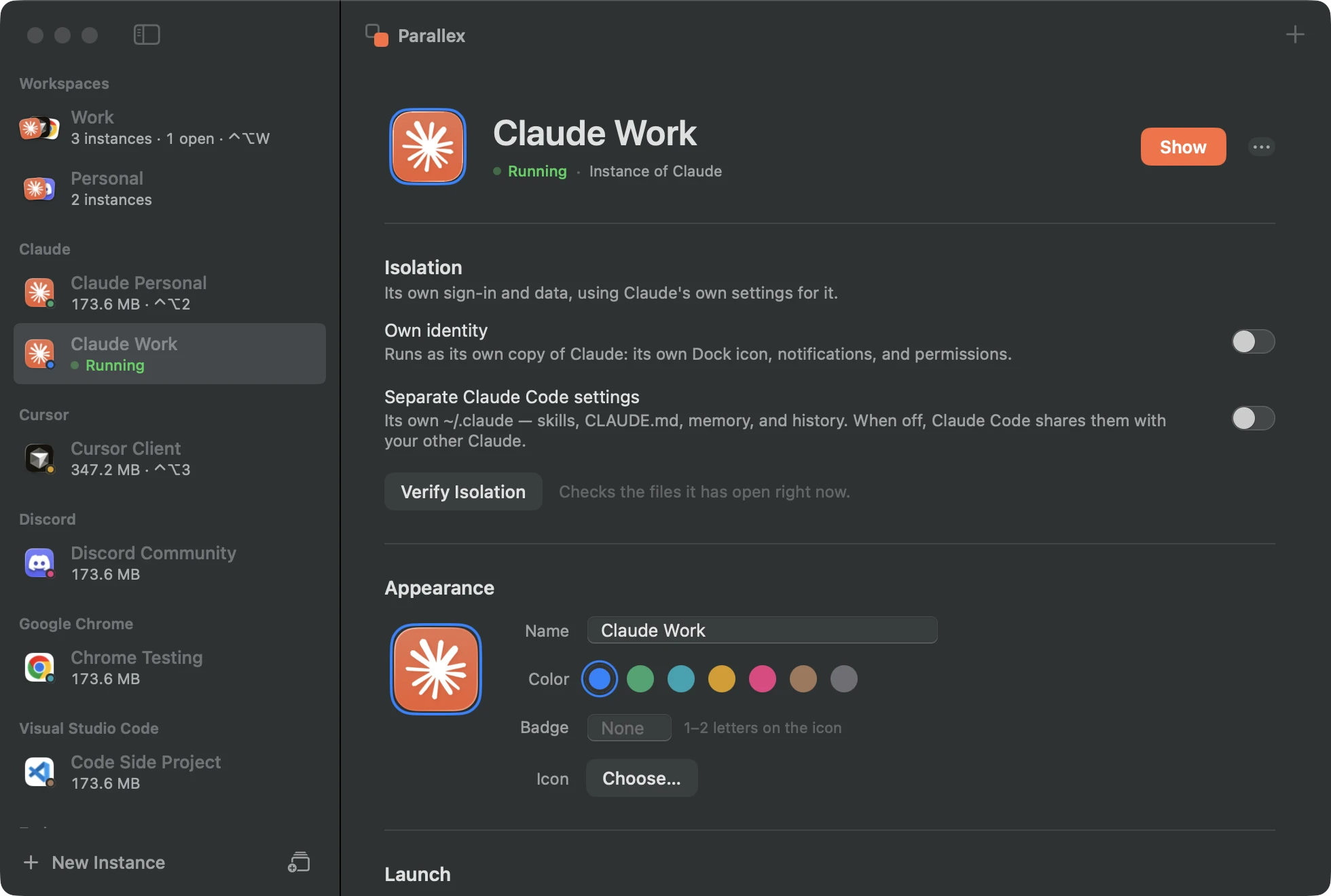
What you get with Visual Studio Code
- Its own copy of VS Code, with its own Dock icon, name and color, its own notifications, and its own macOS permissions.
- Its own Library and keychain, so its sign-in, settings and caches are separate from your other VS Code, and it has its own encryption key in the keychain.
- Guard keeps the copy out of the original's data, and the isolation check shows what the copy has opened of yours.
- Kept up to date by Parallex: VS Code's own updater is turned off in the copy, and Parallex refreshes the copy when your VS Code updates.
- Share settings (an option): your settings, keybindings, snippets and extensions, kept in step, while the copy's sign-ins and open projects are its own.
~/.vscodestays with the copy, so its extensions and shared state don't touch yours.- Works for VS Code Insiders too.
Tested every night
Parallex's compatibility lab makes a fresh copy of Visual Studio Code 1.136.1 every night on a clean Mac and opens it. On October 1, 2026, on macOS 26.6.2, the copy ran, and nothing reached the original's data. Its copies have run clean on all 2 nights since September 30. See every app's latest result.
Good to know
- With Share settings on, keep Settings Sync off in the copy.
Questions
Aren't VS Code profiles enough?
Profiles change settings and extensions inside one VS Code. An instance is a second VS Code, running beside the first, with its own sign-ins, state and window.
Get Parallex
Free and open source, for macOS 14 and later. In Terminal:
curl -fsSL https://parallex.mandip.dev/install | shOr download it from GitHub, or with Homebrew: brew tap mandipadk/parallex https://github.com/mandipadk/parallex then brew install --cask parallex. Then choose New Instance, pick Visual Studio Code, and give it a name.
Already have Parallex?
This opens New Instance with Visual Studio Code picked; you name it and choose its color.
Make a second Visual Studio Code